Complete Ordering Process
Complete Ordering Process
This page walks through the full ordering process step by step — from the customer's perspective and the admin's.
Process Overview
1. Customer places order on the website
         ↓
2. System calculates total price and shipping
         ↓
3. Customer receives confirmation email
         ↓
4. Order appears in the admin panel
         ↓
5. Admin confirms the order
         ↓
6. Customer receives payment instructions
         ↓
7. Admin marks the order as paid
         ↓
8. Customer receives payment confirmation
Step 1 – Customer Places the Order
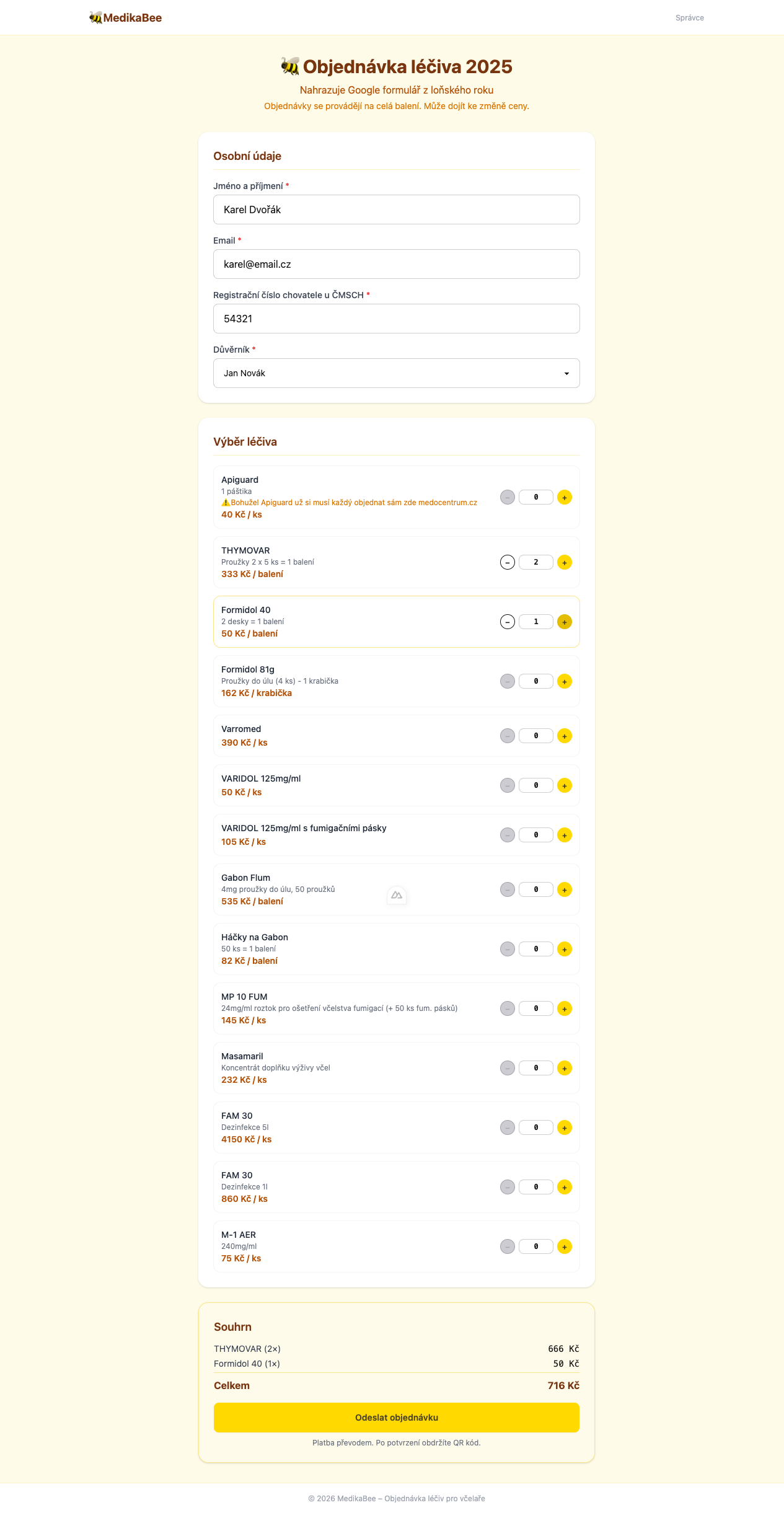
The customer visits the main page of the application and fills in the order form:
- Name and email — for identification and notifications
- Breeder number — ČMSCH registration number
- Trustee — selected from a list of active trustees
- Products — quantity chosen for each available product
After submitting, the system automatically:
- Assigns an order number
- Calculates the shipping fee (a percentage of the total as configured in Settings)
- Sets the status to
pending(orconfirmedif Auto-Approve is enabled) - Sends the customer a confirmation email with the order summary
Step 2 – Admin Processes the Order
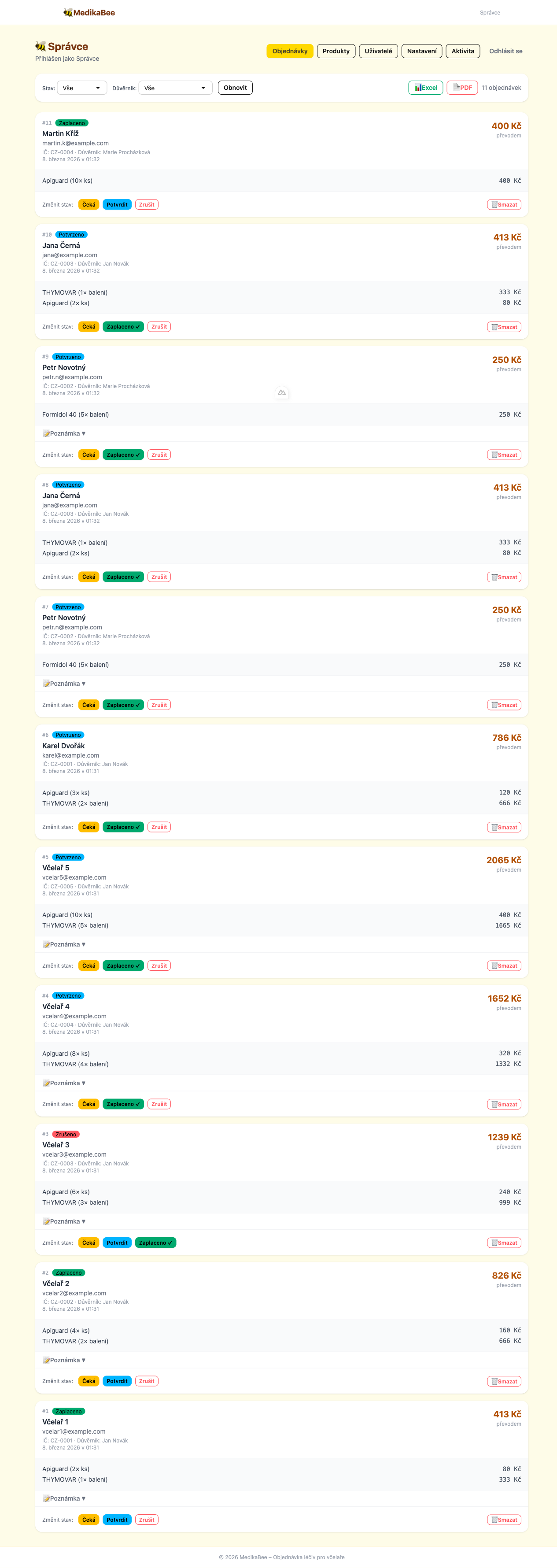
The order immediately appears in the admin panel on the Orders page.
The admin can:
- View the full order detail (products, prices, customer contact)
- Filter orders by status or trustee
- Add an internal note
- Change the order status
Status Types
| Status | When to use |
|---|---|
pending | Default — order waiting for review |
confirmed | Admin has verified the order; customer receives payment instructions |
paid | Payment received, order fulfilled |
cancelled | Order cancelled for any reason |
Step 3 – Email Notifications
The system automatically sends emails to the customer on every status change:
| Event | What the email contains |
|---|---|
| Order placed | Order number, product list, total price, bank account details for payment |
| Status changed | New order status, admin note if any |
Step 4 – Export and Reporting
Admins can export order data at any time:
- Excel — data export suitable for spreadsheet processing or accounting
- PDF — formatted printable report
The export always reflects the currently applied filter — you can export only orders for a specific trustee, status, or any combination.
Auto-Approve
If the admin enables Auto-Approve in Settings, new orders skip pending and start as confirmed immediately. This speeds up the process — customers receive payment instructions as soon as they place their order.