Orders
Managing Orders
How administrators view, filter, update, and export orders in MedikaBee.
Managing Orders
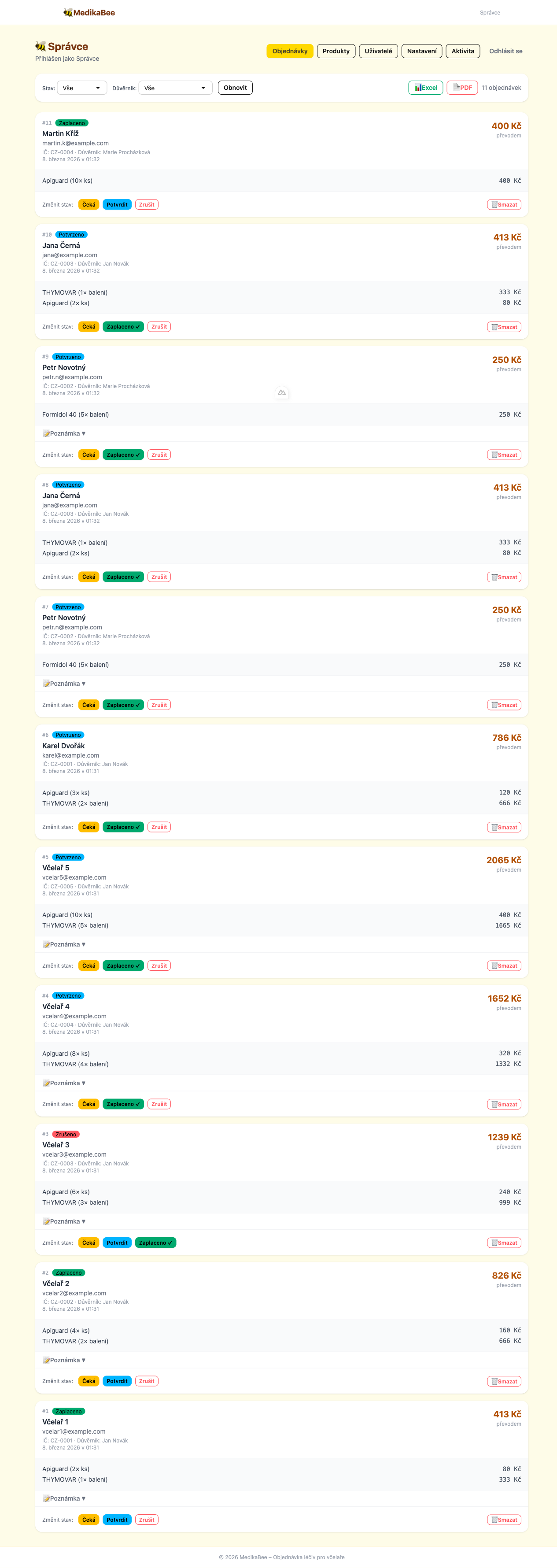
Administrators manage all orders from the Orders page in the admin panel.
Viewing Orders
The orders page shows a table with all submitted orders. Each row displays:
- Order number
- Customer name and email
- Trustee
- Total amount (including shipping)
- Current status
- Submission date
Filtering Orders
Use the filter controls at the top of the page to narrow down the list:

| Filter | Description |
|---|---|
| Status | Show only orders with a specific status (pending, confirmed, paid, cancelled) |
| Trustee | Show only orders belonging to a specific trustee |
Filters can be combined.
Updating Order Status
To change an order's status:
- Click on the order row to open the order detail
- Select the new status from the dropdown
- Optionally add an admin note
- Click Save
The customer automatically receives an email notification when the status changes.
Status Workflow
pending → confirmed → paid
   ↓           ↓        ↓
cancelled  cancelled  cancelled
Exporting Orders

The orders page provides two export options:
| Format | Description |
|---|---|
| Excel | Downloads an .xlsx file with order data — suitable for processing in spreadsheet applications |
| Downloads a formatted PDF report of the current filtered view |
Export applies to the currently filtered orders. Set filters before exporting to get the data you need.
Order Details
Clicking an order opens a detail view showing:
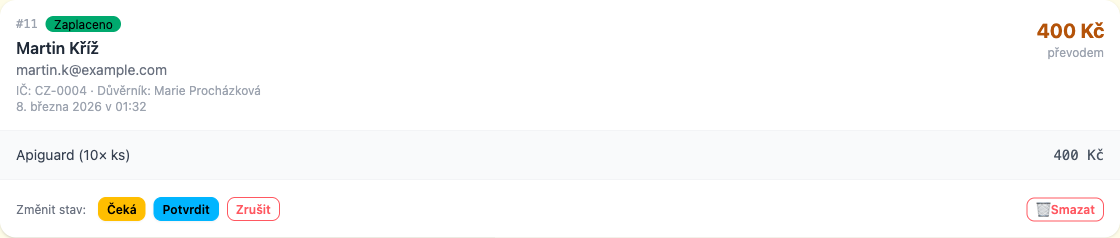
- Full customer info (name, email, breeder number, trustee)
- Itemized product list with quantities and unit prices
- Subtotal, shipping, and grand total
- Order status and history
- Admin note (if any)